
ProductsSoftphoneMobile app
Conference Calls
Create a three-way conference call by merging two calls on Cloud Softphone mobile.
Merge two calls into a three-way conference for quick group discussions. For larger meetings, your IT team may provide a conference bridge — contact them for more than three participants.
Set up a conference
- Start your first call — dial and connect to the first participant.
- Tap Add call (
+). The first caller is placed on hold. - Dial the second participant and wait for them to answer.
- Tap Merge to combine both calls into a conference.
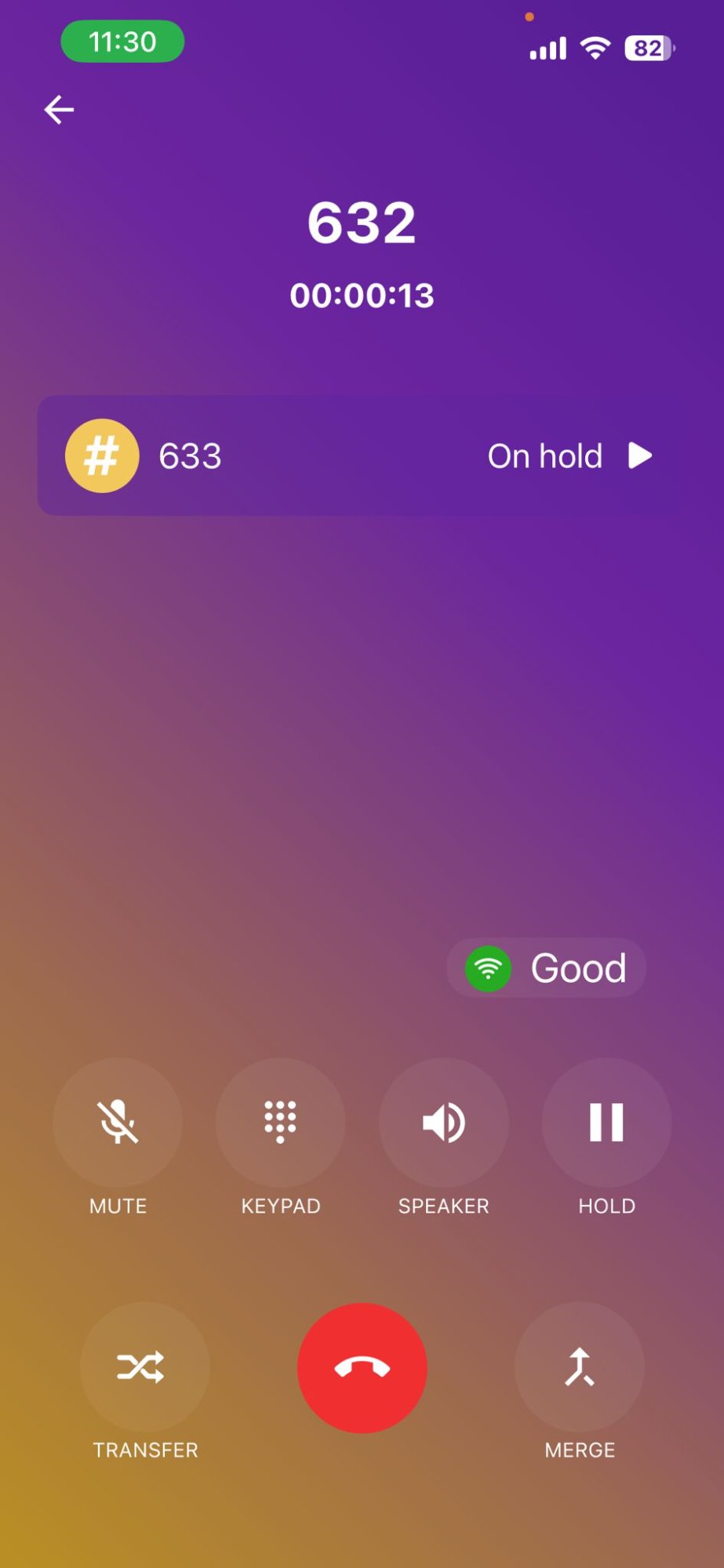
Conference in progress
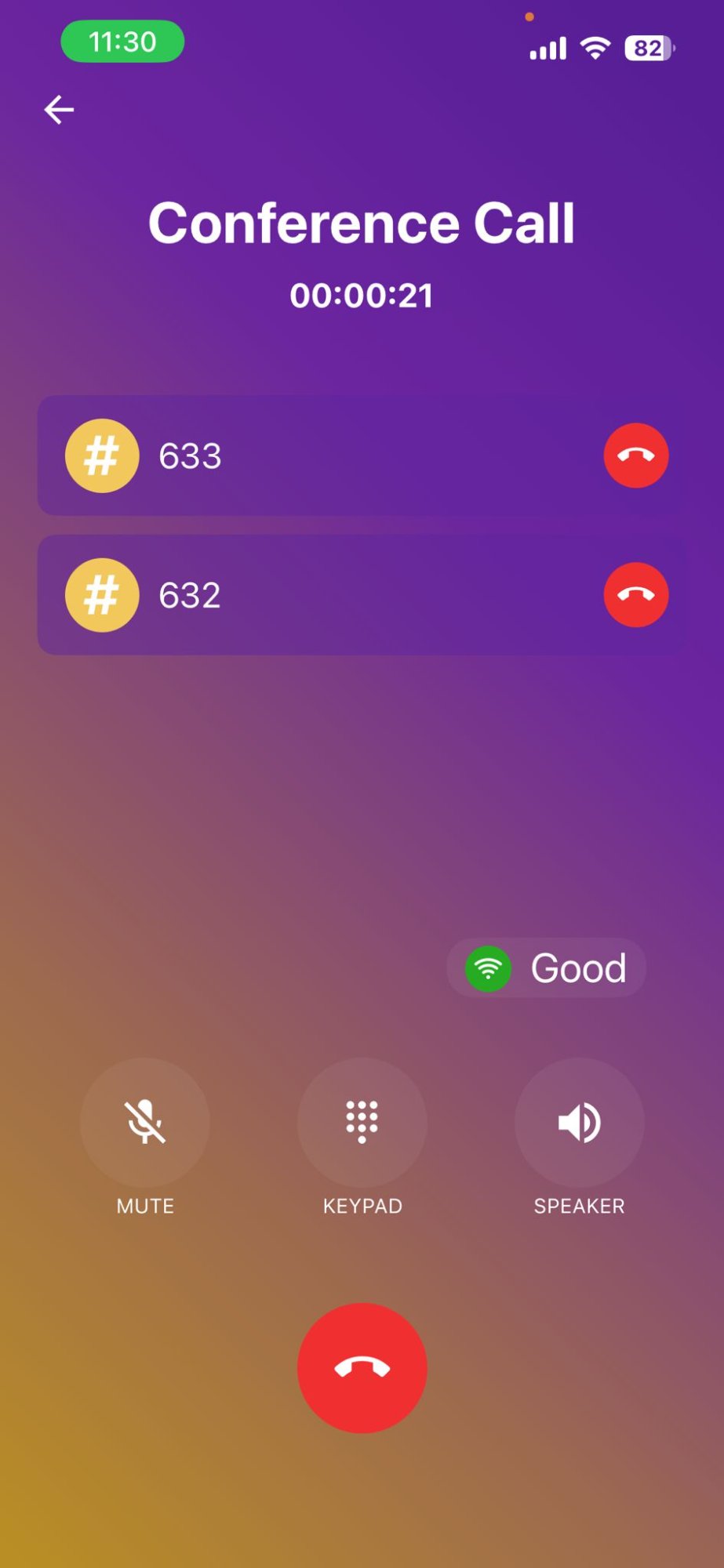
The conference screen shows:
- Conference Call title and elapsed time
- Each participant with an extension or name
- End call (red icon) beside a participant to remove only that person
Controls during a conference
| Control | Action |
|---|---|
| Mute | Mutes your microphone. Others can still hear each other. |
| Keypad | DTMF tones if needed |
| Speaker | Hands-free audio |
| End beside participant | Disconnects that person only |
| Main red End button | Leaves the conference entirely (ends your participation) |
Tips
- Use Wi‑Fi and a quiet location for best quality.
- Mute when not speaking in larger conferences.
- For more than three people, ask IT about a Talk conference bridge or CloudPLAY Meet.
Troubleshooting
If Merge is unavailable or fails:
- Ensure both calls are connected before merging.
- Confirm three-way calling is enabled on your extension — contact your administrator.
- Check you have a stable connection (green status icon).