Status & Settings
Connection status, Do Not Disturb, account toggle, and app settings in Cloud Softphone.
Connection status
When registered, the keypad header shows PHONE IS READY. Open the menu (☰) to see your profile status as REGISTERED.
| Status | Meaning |
|---|---|
| PHONE IS READY / REGISTERED | Connected — you can make and receive calls |
| Not ready | Not registered — check network and restart the app |
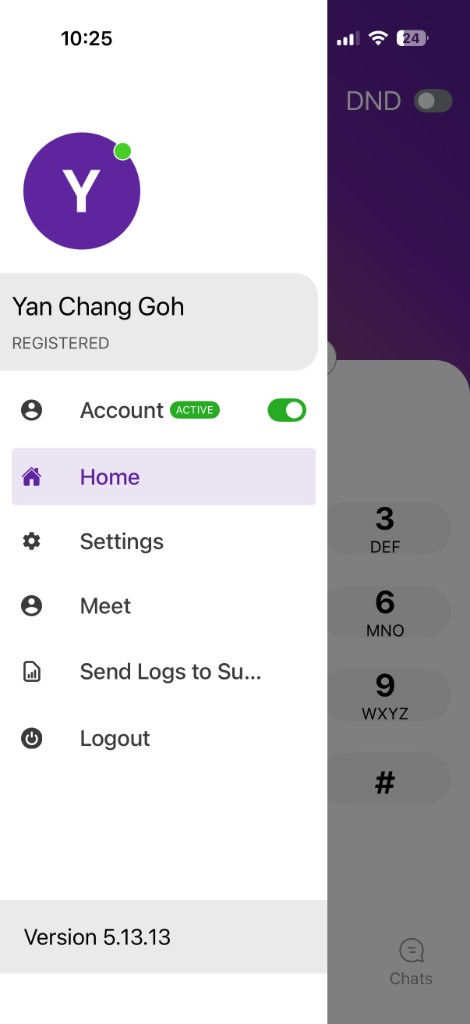
Account details
From the side menu you can:
- View your name and REGISTERED status
- Toggle your Account between ACTIVE and inactive
- Open Settings, Meet, or Logout
Do Not Disturb (DND)
Use the DND toggle on the keypad screen (top-right) to block incoming calls without logging out.
When DND is enabled:
- Incoming calls are not delivered to your softphone
- You may still place outbound calls (depending on configuration)
Use DND during meetings or focus time. Remember to turn it off when you are available again.
User account toggle
In the side menu, turn the Account toggle off to deactivate your extension on this device. You cannot make or receive calls until you turn it back on.
Open Settings
- Tap the menu (☰) in the top-left.
- Select Settings.
Common settings
| Setting | Description |
|---|---|
| Language | Change the app display language |
| Dark theme | Switch between light and dark appearance |
| Video self-view | Show or hide your camera preview during video calls |
| Update configuration | Refresh settings pushed by your administrator |
| Ringtone | Choose incoming call sound (if available) |
| Notifications | Manage call and message alerts |
Administrator-managed options
Some settings are controlled by your IT team and cannot be changed in the app. If an option is greyed out, contact your administrator.
BLF and favourites
BLF is available only for enterprise contacts added as favourites.
- Open Contacts → Enterprise → tap a colleague → tap Add favorite. BLF is enabled automatically.
- Open Contacts → Favourites to see their availability.
- Green checkmark = available, no checkmark = busy or unavailable.
Device contacts shown in All cannot be favourited for BLF.
See App features.
Update configuration
If your administrator changes your extension settings (caller ID, codecs, features):
- Open Settings.
- Tap Update configuration (or similar).
- Wait for the app to sync — the status icon should return to green.