
Making Calls
Place audio and video calls from the keypad, contacts, favourites, or recents.
Audio call from the keypad
- Tap the Keypad tab.
- Select your line from the dropdown if more than one is available.
- Enter the extension or full phone number (include country code for international calls).
- Tap the green Call button (phone icon).
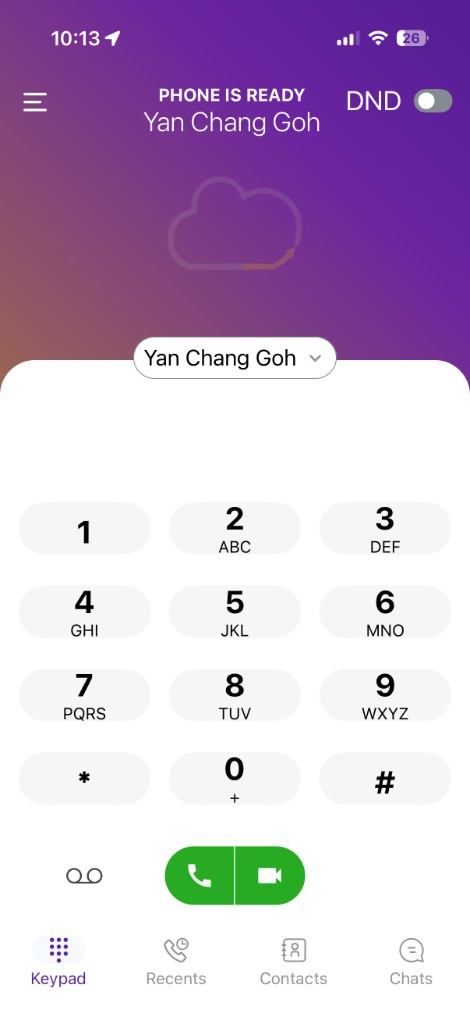
When the header shows PHONE IS READY, you are registered and can place calls.
Voicemail
Tap the voicemail icon on the keypad — to the left of the green audio and video call button — to access your voicemail.
You can also:
- Dial your own extension number on the keypad
- Dial your voicemail access code (for example
*97) if your administrator has configured one
Video call
If video is enabled for your account:
- Dial the number on the Keypad, or open a contact.
- Tap the video icon on the right side of the green call button.
During a video call:
- Speaker turns on automatically for video.
- Tap the camera switch icon to flip between front and rear camera.
- Self-view can be enabled or disabled in Settings → Account.
- Use Pause / Resume video to stop sending video temporarily while staying on the call.
Call from contacts
- Tap Contacts.
- Choose Enterprise, All, or Favourites from the dropdown.
- Find the person and tap to call.
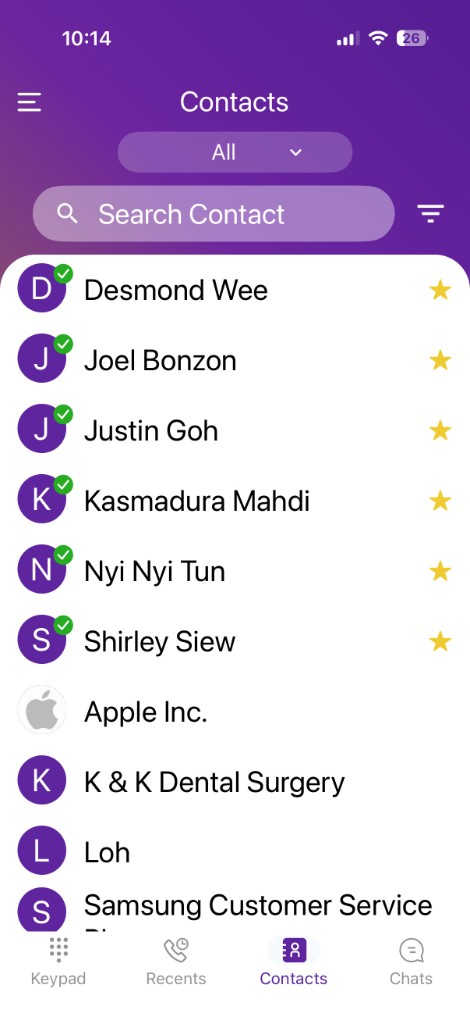
A green checkmark on the contact’s avatar means they are available.
Call from favourites
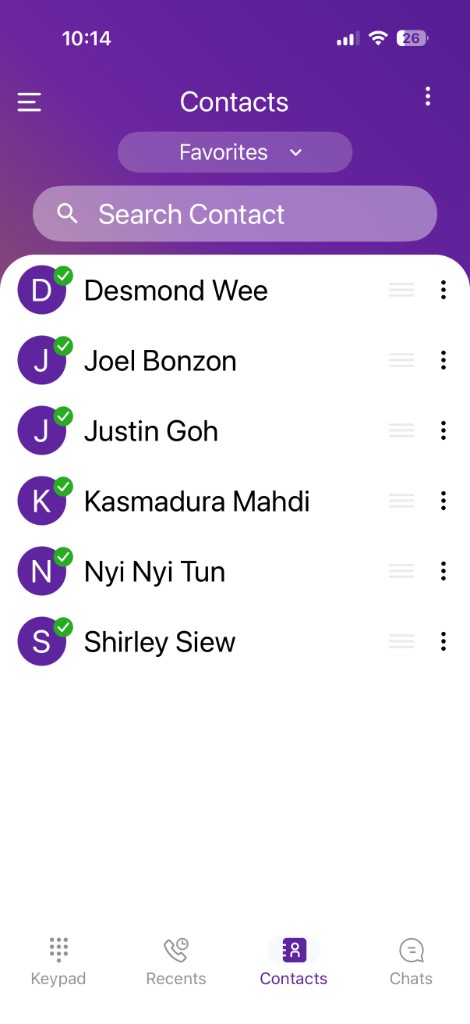
Favourites lists enterprise colleagues you have starred. BLF status is shown here.
- Tap Contacts.
- Select Favourites from the dropdown.
- Tap a contact to call, or check the green checkmark to see if they are available first.
Call from recents
- Tap Recents.
- Tap a name or number to call back.
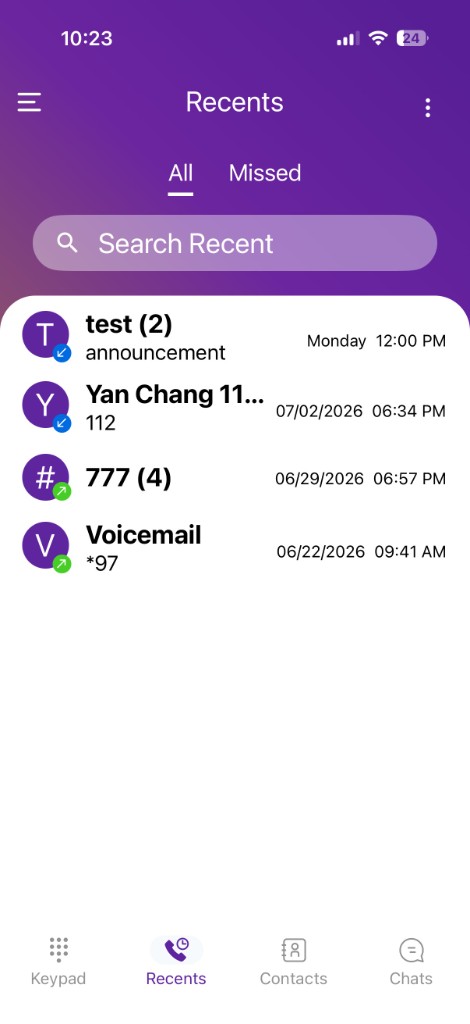
Use the Missed tab to find calls you did not answer.
Add to contacts while dialling
If you dial a number that is not saved:
- After entering the number, tap Add to contact.
- Your device’s contact app opens to save the number.
Incoming calls
When a call arrives, you see an Incoming call from screen with the caller’s name and extension. Tap the blue answer button (checkmark) to accept, or the red button to decline.

You may also see a notification at the top of the screen — tap it to answer without opening the full screen.
- For video calls, you may choose to answer as audio only or video.
Unlock your phone if required. Ensure notifications are enabled — see Troubleshooting.
During the call
See In-call controls for mute, hold, transfer, and conference.