
App Features
Overview of keypad, recents, contacts, favourites, BLF, and chats in CloudPLAY Softphone.
After you sign in, the bottom navigation bar gives you access to the main features of CloudPLAY Softphone.
Main tabs
| Tab | What it does |
|---|---|
| Keypad | Place outbound calls or tap the voicemail icon beside the call button. Shows PHONE IS READY when registered. |
| Recents | View All or Missed calls. Tap an entry to call back. |
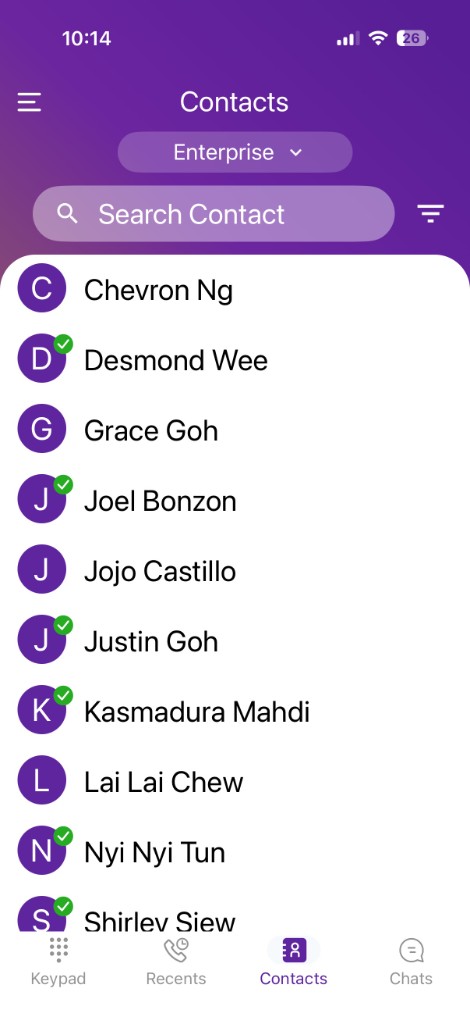
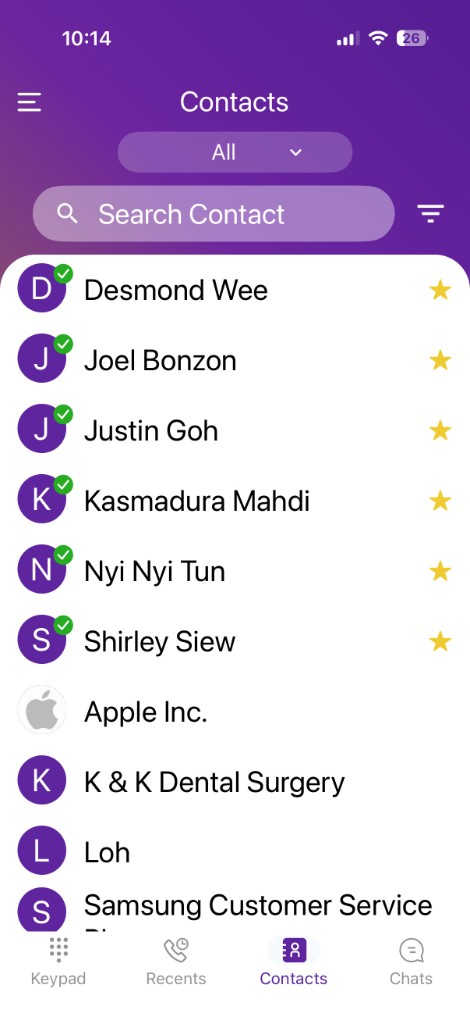
| Contacts | Company directory, device contacts, and favourites. Filter by Enterprise, All, or Favourites. |
| Chats | Team messaging (if enabled by your administrator). |
Keypad
The Keypad tab is the fastest way to call when you know the number. Select your line from the dropdown at the top if you have more than one, then dial and tap the green Call button for audio. Tap the video icon on the right side of the button for a video call.
Tap the voicemail icon to the left of the call button to open your voicemail. You can also dial your own extension number on the keypad.
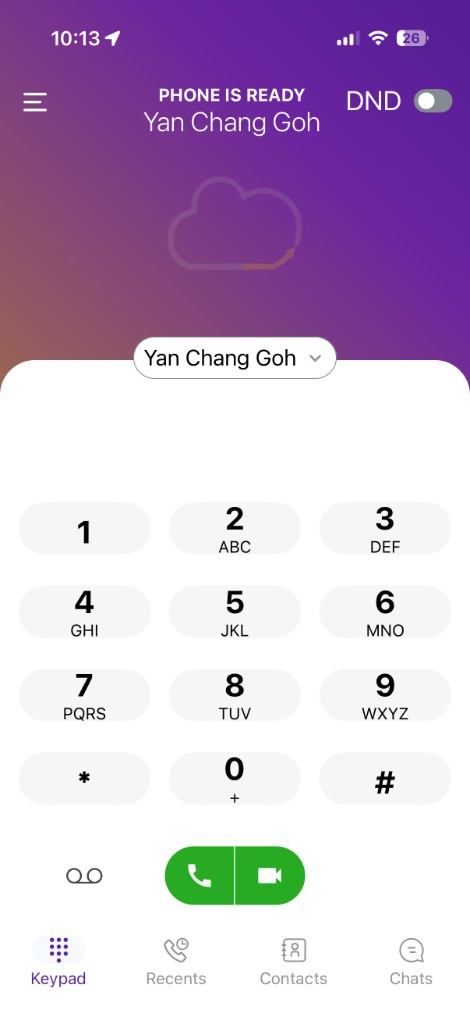
Use the DND toggle in the top-right to turn Do Not Disturb on or off without opening the menu.
Call history
Open Recents to see incoming, outgoing, and missed calls. Use the All and Missed tabs to filter the list. Tap a name or number to call back.
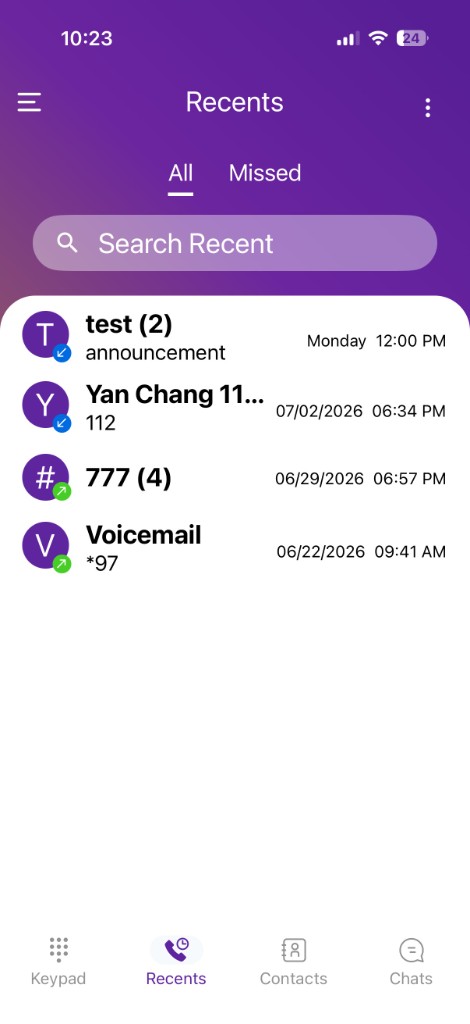
Incoming calls show a blue arrow; outgoing calls show a green arrow.
Contacts
Open Contacts and use the dropdown at the top to switch views:
Enterprise
Your company directory synced by your administrator.
All
Enterprise contacts combined with contacts from your device.
Favourites
Enterprise colleagues you have added as favourites. BLF status is shown here for favourited enterprise contacts only.
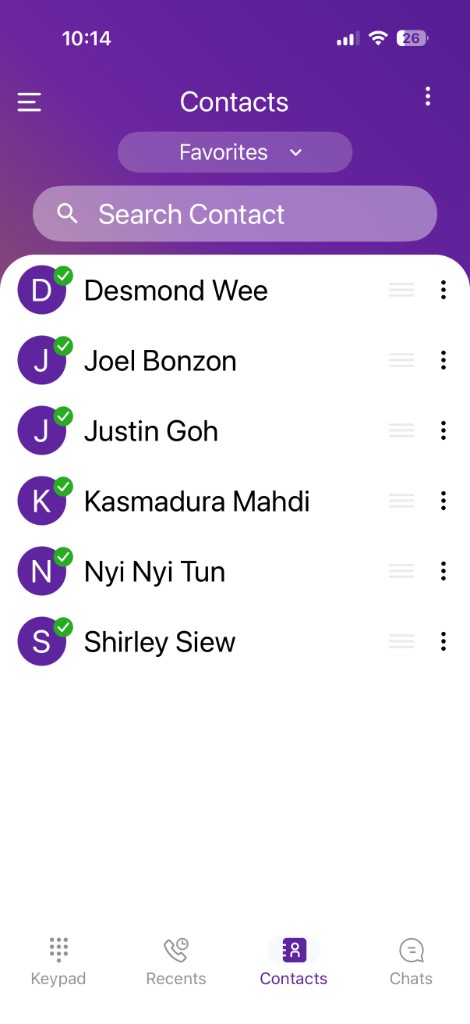
Favourites & BLF
BLF (Busy Lamp Field) shows whether an enterprise colleague is available. BLF applies only to enterprise contacts you have added as favourites — device contacts from All do not support BLF.
Add an enterprise contact to favourites
- Open Contacts → Enterprise.
- Tap a colleague to open their contact card.
- Tap Add favorite at the bottom of the card. BLF is enabled automatically — you do not need to turn it on separately.
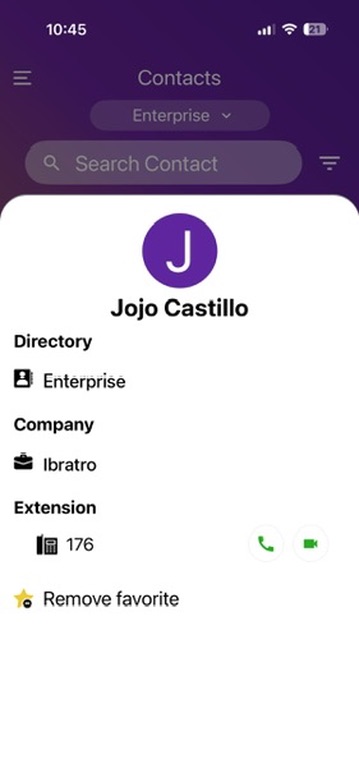
To remove a favourite, open the same contact card and tap Remove favorite.
View BLF status
Open Contacts → Favourites to see your favourited enterprise colleagues and their availability:
| Indicator | Meaning |
|---|---|
| Green checkmark | Available — not on a call |
| No checkmark | Busy or unavailable |
Chats
If your administrator enabled messaging, open the Chats tab to view conversations and send messages to colleagues. See Chat.
Account & menu
Tap the menu (☰) top-left to open the side menu. From here you can:
- View your profile and REGISTERED status
- Toggle your Account active or inactive
- Open Settings, Meet, or Logout
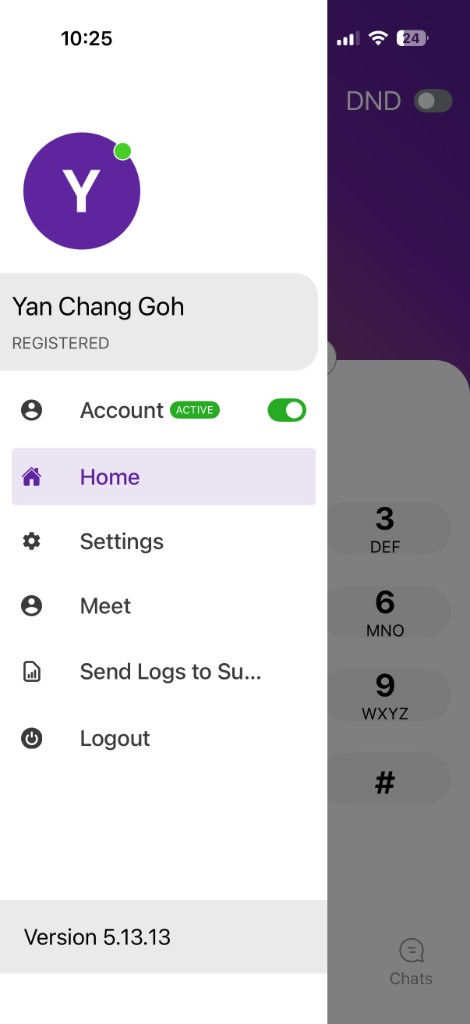
When your Account toggle is off, you cannot make or receive calls. DND in the keypad header blocks incoming calls while you remain logged in.
Settings
Open the menu → Settings to adjust language, dark theme, video self-view, update configuration, and more. See Status & settings.