
Install & Login
Download CloudPLAY Softphone and register your extension on iOS or Android.
Follow these steps to download, install, and configure CloudPLAY Softphone on your mobile device.
Download the app
Install CloudPLAY Softphone from the App Store (iPhone / iPad) or Google Play (Android):


Look for this icon if you search manually in the App Store or Google Play. CloudPLAY Softphone
Deployment email
Your IT team may send a direct download link in your deployment email. You can use the links above or the link from IT.
Permissions
When you first open the app, allow:
| Permission | Why it is needed |
|---|---|
| Microphone | Voice calls |
| Notifications | Incoming calls when the app is in the background |
| Contacts | Dialling from your directory (optional but recommended) |
| Camera | QR code login and video calls (if used) |
Sign in
Your organisation may offer QR code login, username and password, or both.
QR code (most common)
This is the usual method when you receive a deployment email from IT.
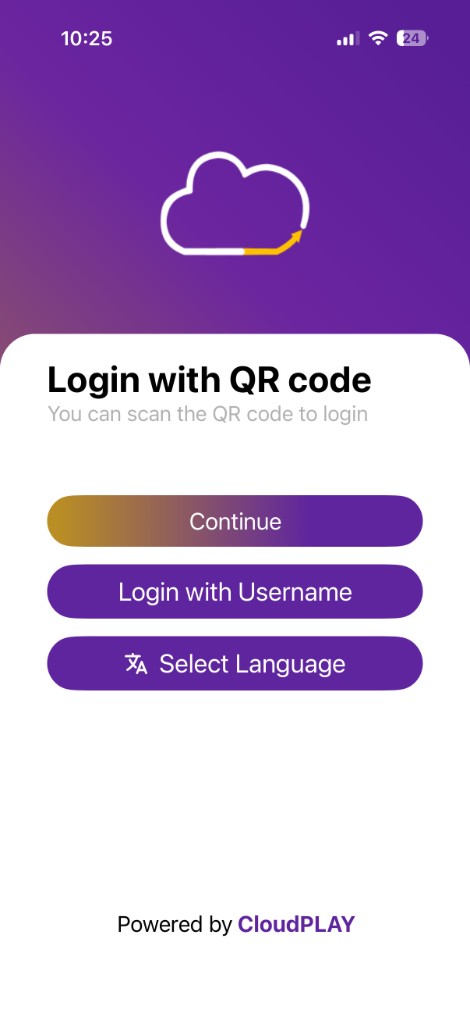
- Open CloudPLAY Softphone.
- On the welcome screen, choose Login with QR code (or tap Login with QR Code from the username screen).
- Tap Continue and point your camera at the QR code in your deployment email.
- You can also scan a QR code saved in your photo gallery.
Keep your QR code private
Each QR code is unique to your account. Do not share your deployment email or QR code with others.
Username and password
If your administrator enabled credential login:
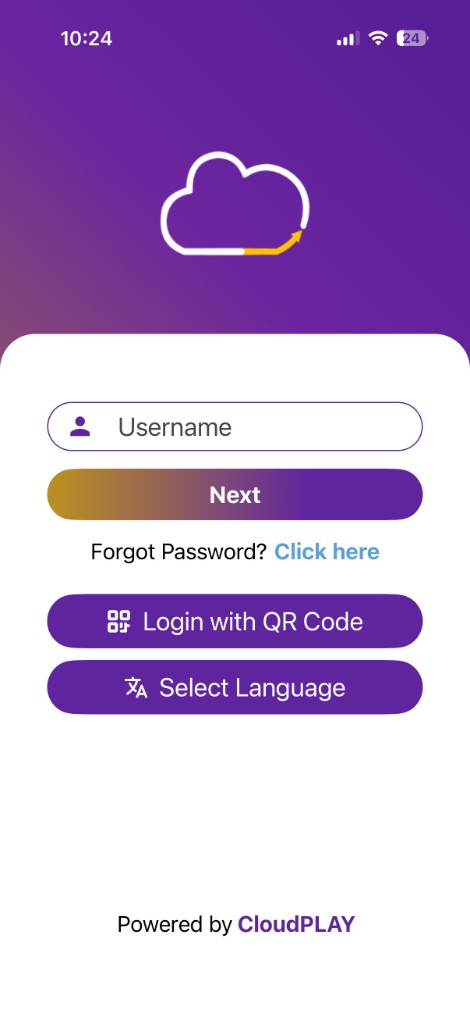
- Tap Login with Username on the welcome screen (or start from the username screen if shown).
- Enter your username and tap Next.
- Enter your password and tap Login.
Passwords are typically at least six characters and may require uppercase, lowercase, numbers, and special characters (for example E@com123).
Language
Before logging in, tap Select Language on the welcome screen and choose your preferred language.
Forgot password
- Tap Forgot Password? Click here on the login screen.
- Enter your user ID and follow the instructions sent to your registered email.
Confirm you are registered
When connected, the keypad shows PHONE IS READY at the top. Open the menu (☰) to confirm your account status shows REGISTERED and ACTIVE.
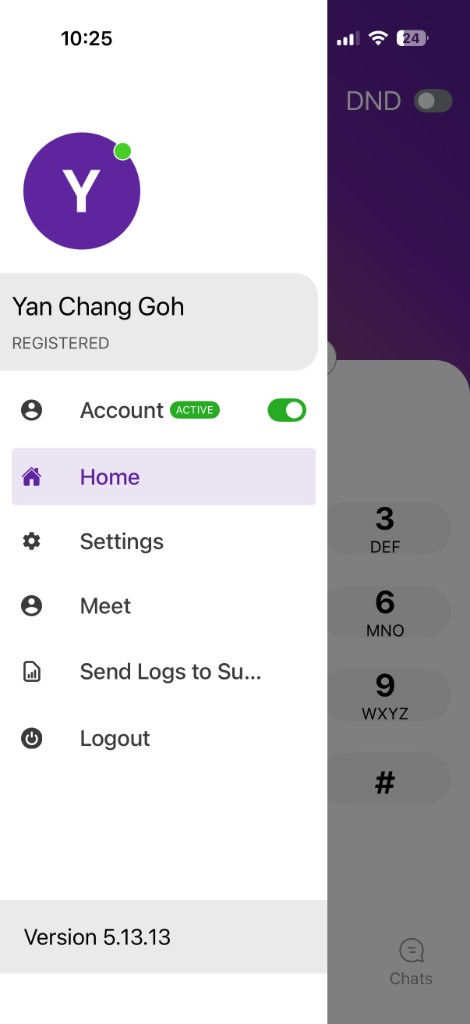
Not registered?
If you do not see PHONE IS READY or REGISTERED, check Wi‑Fi or mobile data and restart the app. See Troubleshooting.
Next steps
- App features — learn the main screens
- Making calls — place your first call