
In-Call Controls
Mute, keypad, speaker, hold, transfer, and add call during an active Cloud Softphone call.
During an active call, Cloud Softphone shows controls at the bottom of the screen. A call quality badge (for example Good with a Wi‑Fi icon) appears when your connection is healthy.
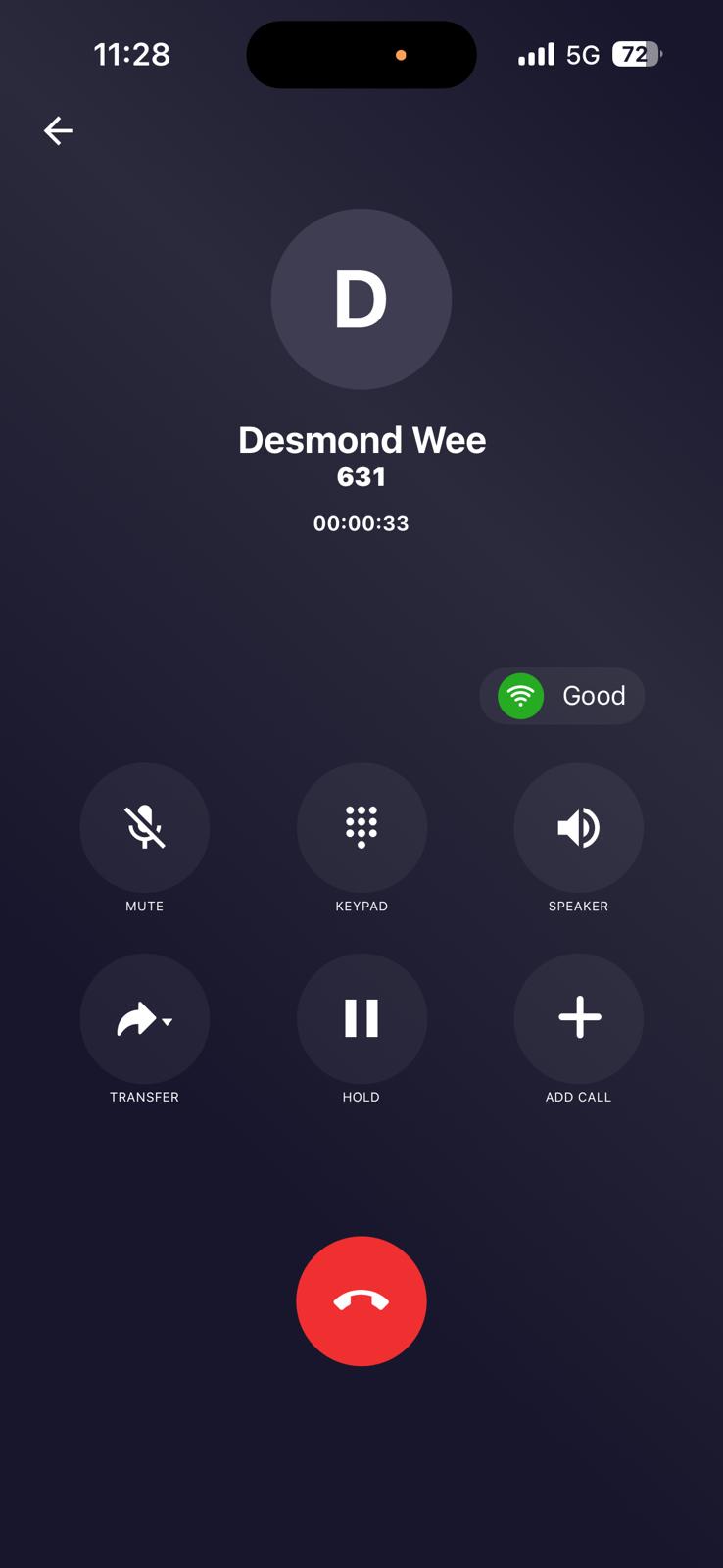
Control reference
| Button | Function |
|---|---|
| Mute | Turns your microphone off. Tap again to unmute. |
| Keypad | Opens the DTMF dial pad for IVR menus, extensions, or PIN entry during a call. |
| Speaker | Routes audio to the loudspeaker for hands-free use. |
| Transfer | Sends the call to another person — see Transfers. |
| Hold | Puts the caller on hold. Tap again to resume. |
| Add call | Starts a second call for a conference — see Conference calls. |
| End call | Red button — hangs up the call. |
Mute
Tap Mute when you need to speak privately or reduce background noise. The other party cannot hear you until you unmute.
Keypad (DTMF)
Use the keypad when an automated system asks you to “press 1 for sales” or when entering a voicemail PIN.
Speaker
Tap Speaker for hands-free conversation. Lower speaker volume in noisy environments to reduce echo for the other party.
Hold
Tap Hold to pause the conversation. The caller typically hears hold music or silence. Tap Hold again (or Resume) to continue.
Network quality
Watch the connection badge during calls. If quality drops, move closer to Wi‑Fi or switch networks. Yellow or red status icons on the main screen mean you should fix registration before important calls.