
Status & Settings
DND, auto answer, account toggle, theme, sound, and configuration on Softphone desktop.
Quick status controls
These controls usually appear on the Softphone dashboard (often top-right).
Do Not Disturb (DND)
When DND is on:
- You do not receive incoming calls or messages in Softphone
- You may still see missed call notifications
- You can usually still place outbound calls (depending on configuration)
Turn DND off when you are available again.
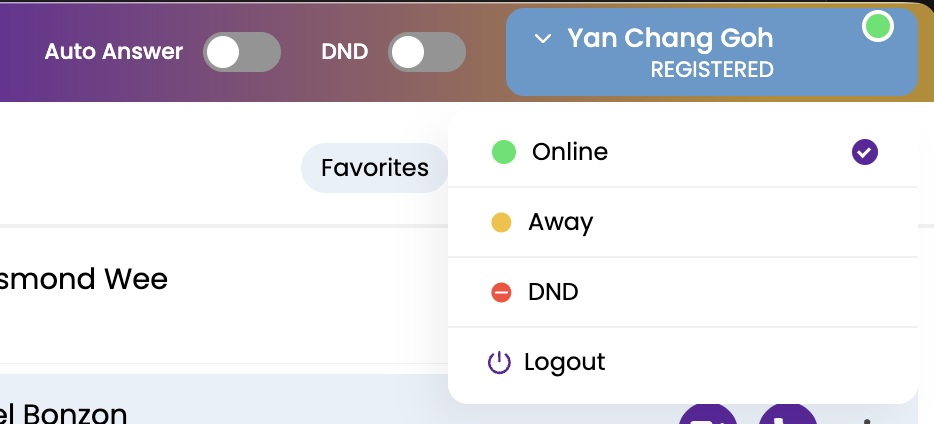
Auto answer
When Auto answer is on, Softphone answers incoming calls automatically. When it is off, you must accept or reject each call manually.
Account active / inactive
Turning the user / account toggle off deactivates your extension on this computer. You remain signed in but cannot make or receive calls until you turn it back on.
Open Settings
- Click Settings (gear icon) in the left sidebar.
- Select Settings.
Account settings
Under account settings you may be able to view or adjust (some options are administrator-controlled):
| Setting | Description |
|---|---|
| Self-view | Show or hide your camera preview on video calls |
| DTMF type | How keypad tones are sent during calls |
| No-answer timeout | How long before unanswered calls follow your no-answer rules |
| Outbound caller ID | Name / number shown when you dial out (often read-only) |
| Codecs / encryption | Voice and video quality and security options |
Administrator-managed options
Greyed-out settings are controlled by IT. Contact your administrator if you need a change.
Update configuration
If IT changes your Softphone profile (caller ID, codecs, features):
- Open Settings.
- Choose Update configuration / Download latest configuration (wording varies).
- Wait for Softphone to sync — confirm you are still registered.
You can also re-login, or ask IT to push configuration from the customer web portal.
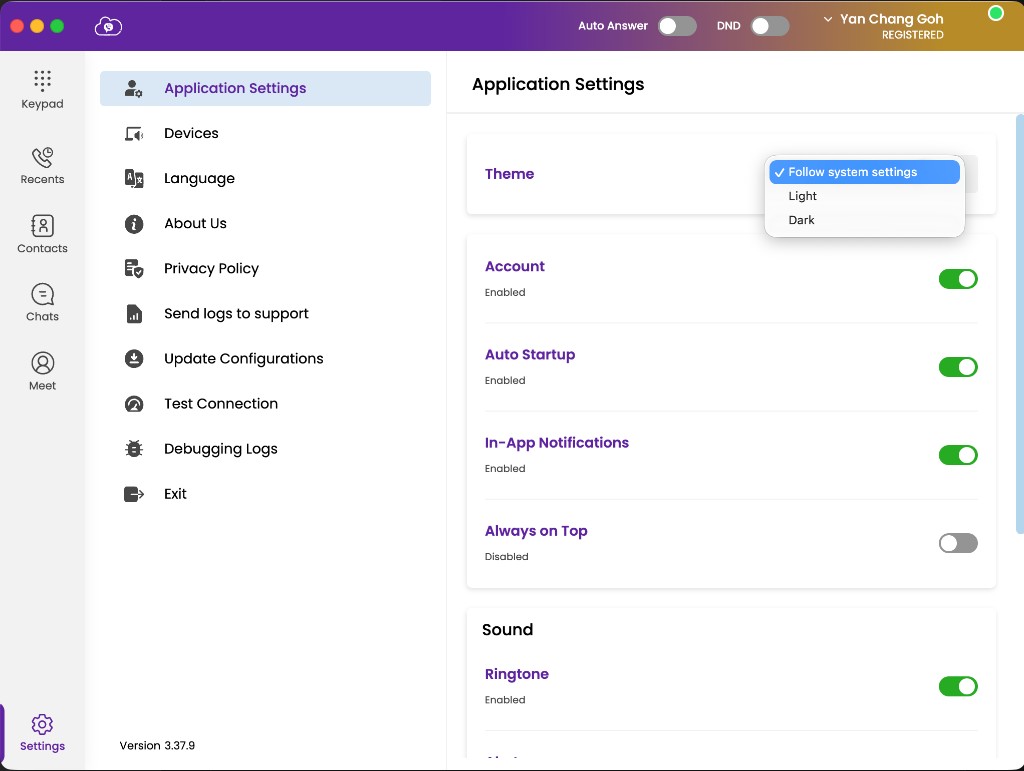
Application settings
| Setting | Description |
|---|---|
| Theme | Light or dark appearance |
| Language | Softphone display language |
| Auto startup | Launch Softphone when your computer starts |
| Re-registration | Refresh registration with the server |
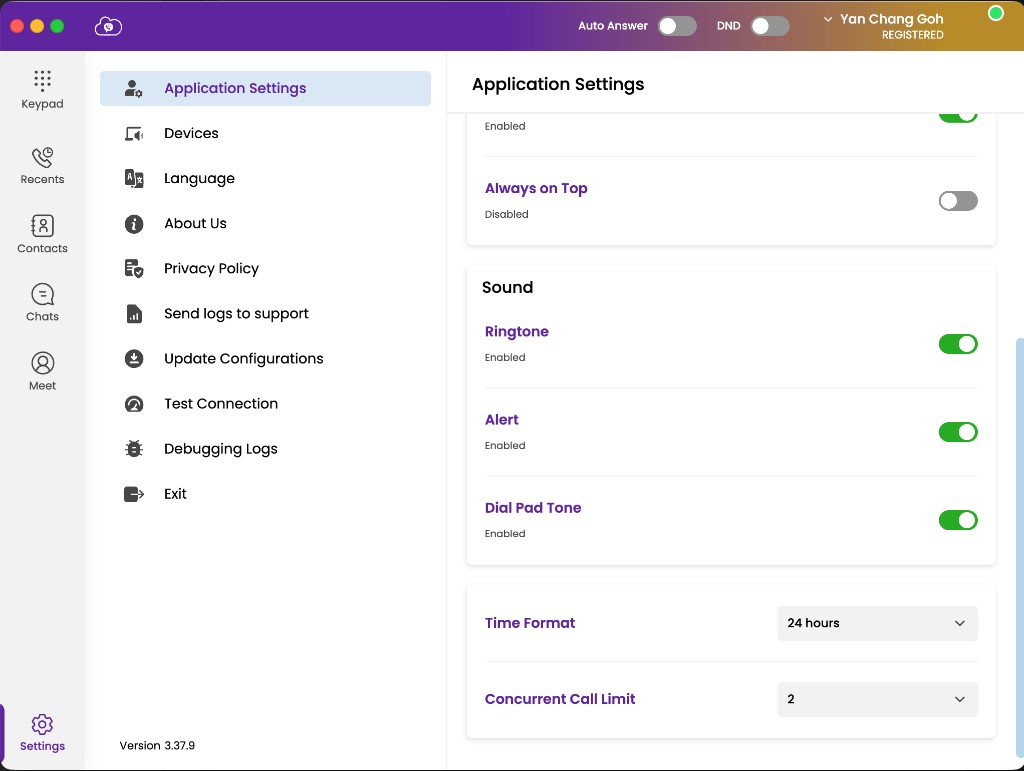
| Sound | Input / output devices and volume |
| Notifications | Ringtone, alert, and dial-pad tones |
Sound devices
Choose your headset or speakers under Sound so Softphone uses the correct microphone and speakers. Adjust output volume and notification tone levels as needed.
Debugging and support tools
Use these only when IT or Support asks:
| Option | Purpose |
|---|---|
| Clear logs | Deletes stored Softphone logs |
| Email logs | Opens your mail app with logs attached for Support |
| Websocket / test connection | Checks network connectivity to Softphone services |
About, privacy, and updates
- About — app version and product information
- Privacy policy — how Softphone handles data
- Version update — when a new build is available, update from Settings (or install the package IT provides)
Exit and logout
| Action | Result |
|---|---|
| Exit | Closes Softphone but keeps you logged in for next launch |
| Logout | Signs you out and returns to the login screen |
Prefer Exit during the workday if you still need to receive calls after reopening the app.