
ProductsSoftphoneDesktop app
Chat
One-to-one team chat in CloudPLAY Softphone desktop when enabled.
Chat depends on what your organisation has enabled. If you do not see Chat, contact your IT administrator.
One-to-one chat
Desktop Softphone supports one-to-one conversations. Group chat is not supported.
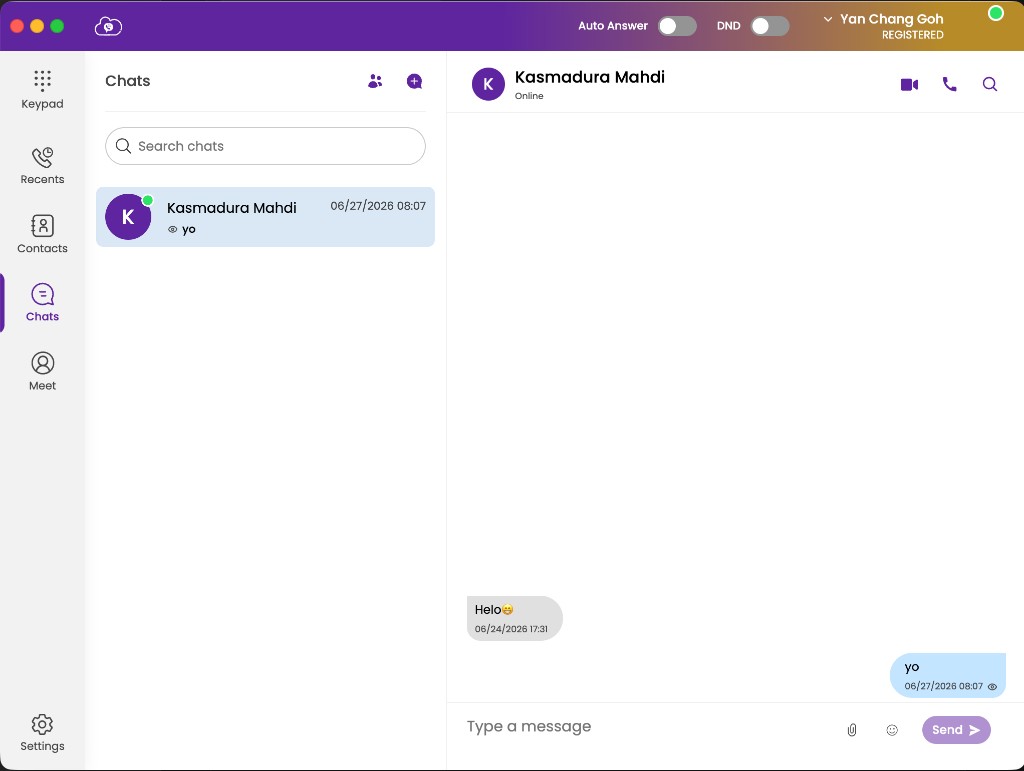
- Open Chat.
- Click the new chat control (often bottom-right or a pencil icon).
- Select a SIP / enterprise contact.
- Type your message and send.
You can typically send and receive:
- Text and emoji
- Documents, photos, and videos
- Audio files
Delivery ticks (if shown)
| Indicator | Meaning |
|---|---|
| Single grey tick | Message sent |
| Double grey tick | Delivered |
| Double blue tick | Read by the recipient |
Chat status and settings
Where available:
- Set your chat status for colleagues
- Import or export chat history
- Edit your chat profile name and photo (camera or gallery)
Notifications
Enable Softphone notifications in your OS and in Softphone settings so you do not miss chat messages while working in another window.
Privacy and etiquette
- Do not share confidential information in chat unless your organisation policy allows it.
- For urgent matters, a voice call is often faster than waiting for a reply.