
ProductsSoftphoneDesktop app
Making Calls
Place audio and video calls from the dial pad, contacts, or call history on desktop Softphone.
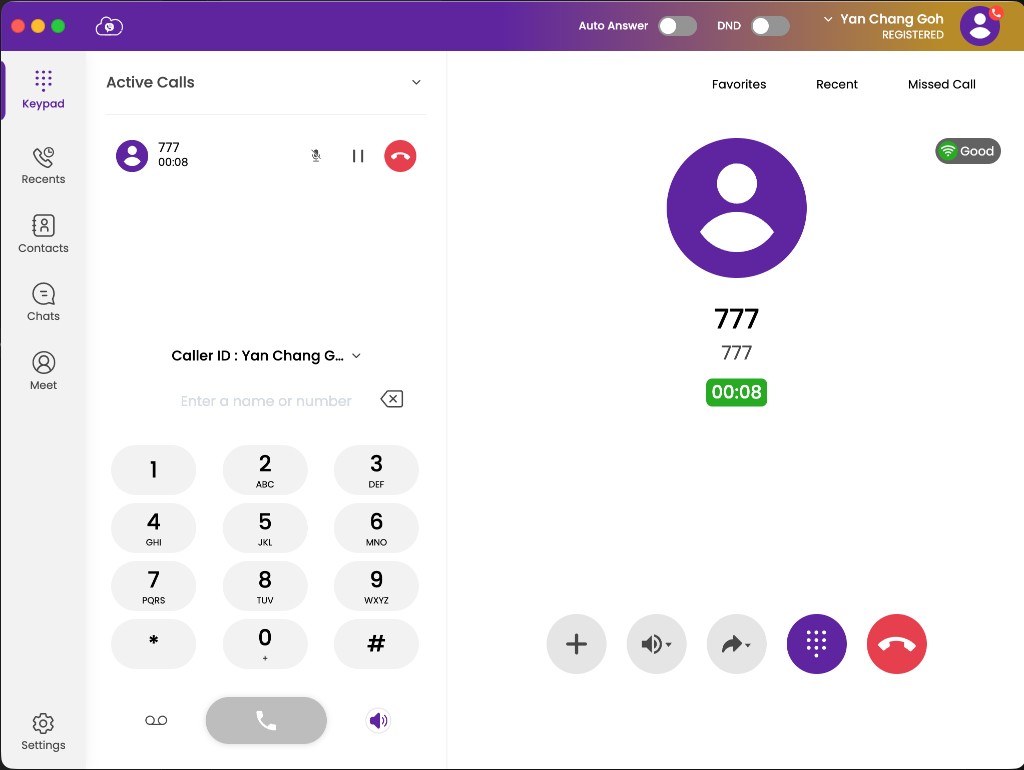
Audio or video call from the dial pad
- Open CloudPLAY Softphone.
- Enter the extension or full number on the dial pad.
- Click the audio call button, or the video call button if video is enabled.
Your organisation may let you choose an outbound caller ID before dialling if multiple numbers are configured.
Call from contacts
- Open Contacts (usually near the bottom of the window).
- Choose Enterprise / SIP, Phone, or All.
- Find the person and click the audio or video button beside their name.
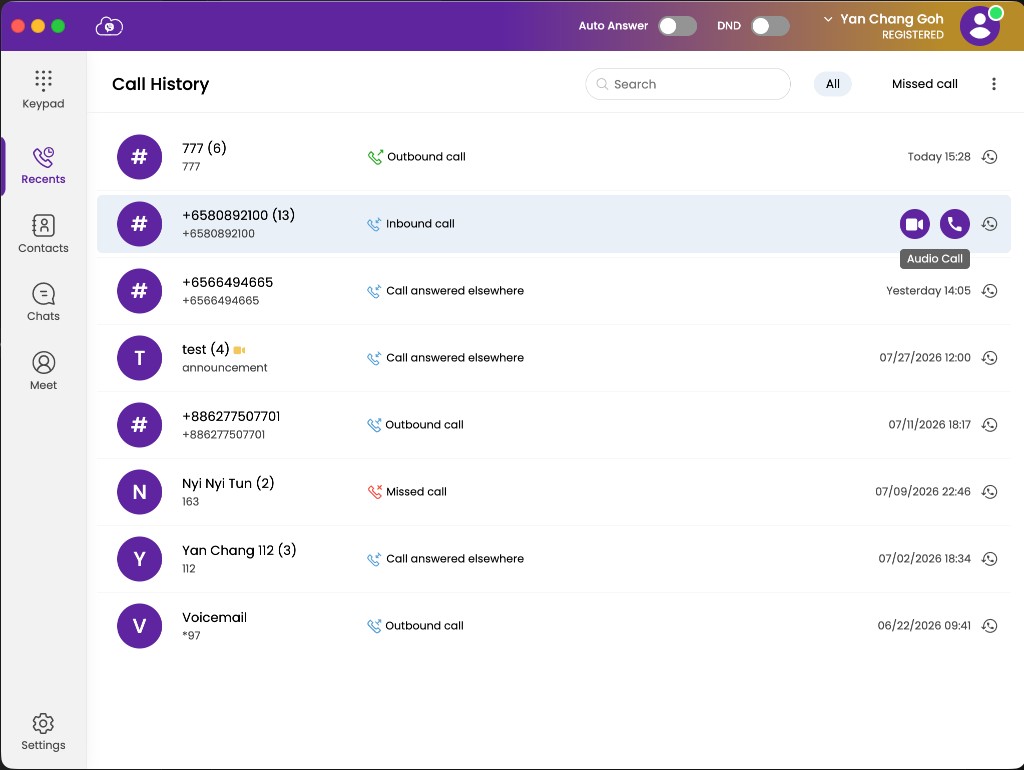
Call from recents
- Open Recents / call history.
- Click a name or number.
- Choose audio or video from the menu.
Add a contact while dialling
If you dial a number that is not saved:
- Click Add to contacts.
- Your computer’s contacts app (or the Softphone contact form) opens so you can save the number.
Enterprise directory contacts are managed by your administrator in the company phone book and appear under Contacts after sync.
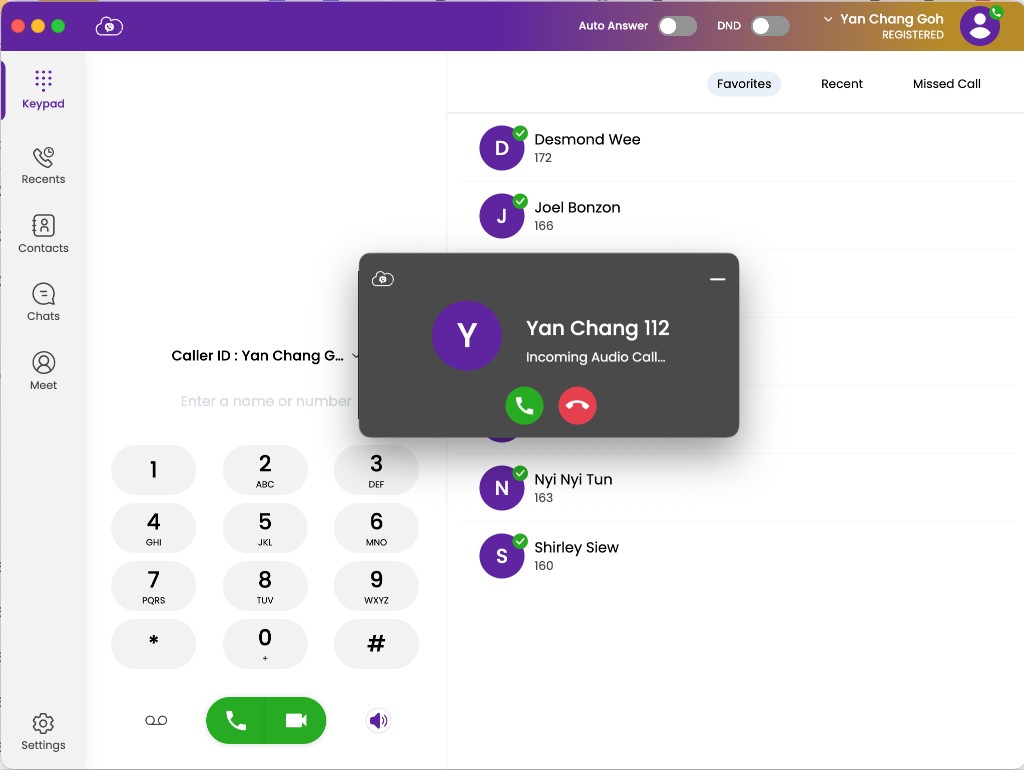
Incoming calls
When a call arrives:
- Answer or Reject manually, or
- Let Auto answer take the call if that toggle is on (see Status & settings).
If DND is on, you will not receive the call in Softphone (you may still see a missed-call notification).
During the call
See In-call controls for mute, hold, transfer, and dial pad.