
ProductsSoftphoneDesktop app
App Features
Dashboard, dial pad, contacts, recents, and status controls in CloudPLAY Softphone desktop.
After you sign in, the desktop Softphone home screen is your main workspace.
Dashboard overview
The home screen typically includes:
| Area | What it does |
|---|---|
| Dial pad | Place audio or video calls when you know the number |
| Contacts | Enterprise directory and device / local contacts |
| Recents / call history | Callback from recent calls |
| Favourites | Quick access to starred enterprise contacts and BLF |
| Chat | One-to-one messaging (if enabled) |
| Settings (gear) | Open application settings, account options, and logout |
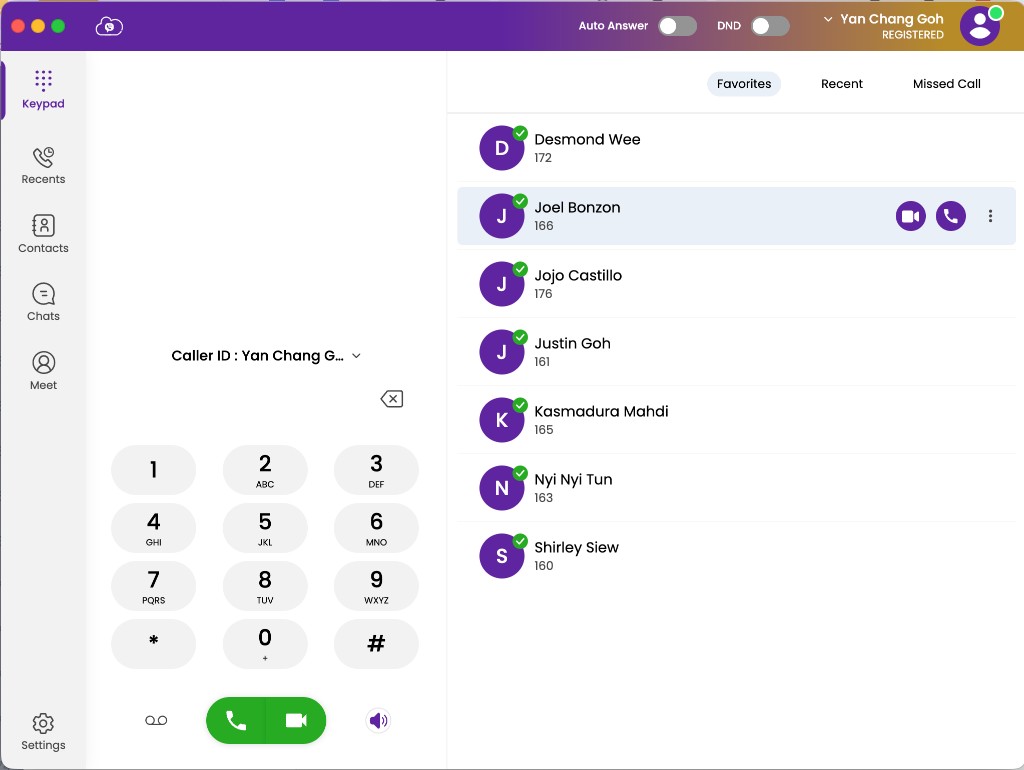
Status controls (top right)
On the top-right of the dashboard you can usually find:
| Control | What it does |
|---|---|
| DND | Do Not Disturb — blocks incoming calls and messages; you still get missed-call notifications |
| Auto answer | Incoming calls are answered automatically |
| Account active / inactive | Turns your extension on or off on this computer |
| Presence / status | Optional status modes if enabled by your organisation |
See Status & settings for details.
Dial pad
Use the dial pad to enter an extension or full phone number, then click the audio or video call button.
You can also adjust output volume from the dial pad or sound settings.
Contacts and recents
- Open Contacts to call from the directory.
- Open Recents to call back from history.
See Making calls and Contacts & BLF.